This guide was made by AI
Common console errors and how to fix them
Copy the ERRORS line from Overview, match it here, then fix RAM, Java, plugins, ports, whitelist or the world before you reinstall.

On this page
Most crash and join tickets are the same few console lines. Filter to ERRORS, copy the exact text, then match it below. Do not restart in a loop and do not reinstall until you have a backup.
On Overview, turn on ERRORS, then use copy or download in the console toolbar. The matching row below is faster than guessing.
Match the error
| Error | What it means | What to do |
|---|---|---|
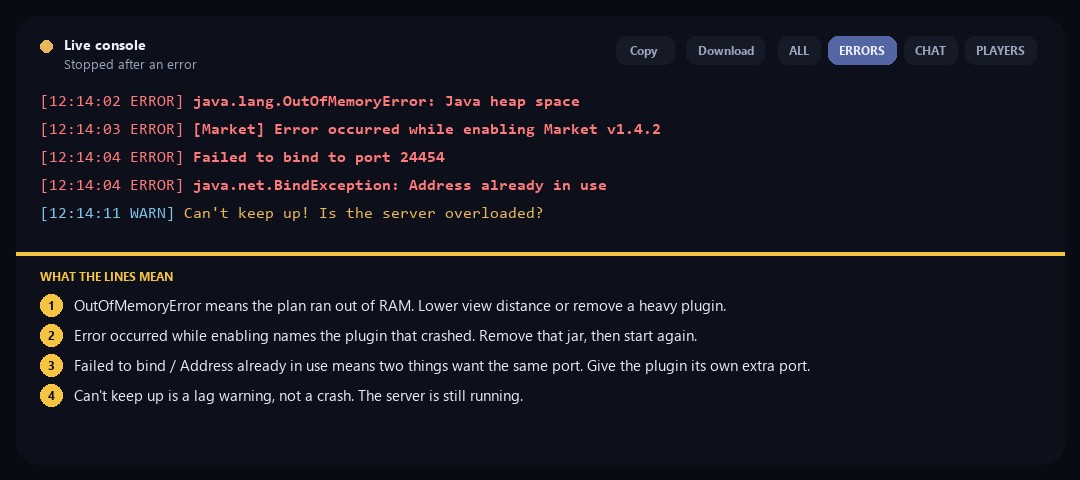
| Out of memory / Java heap space | The server used more RAM than the plan allows. | Lower render and simulation distance, remove heavy plugins, or upgrade RAM. |
| UnsupportedClassVersionError | Java is too old or too new for this software. | Settings → General, change Java, then start again. |
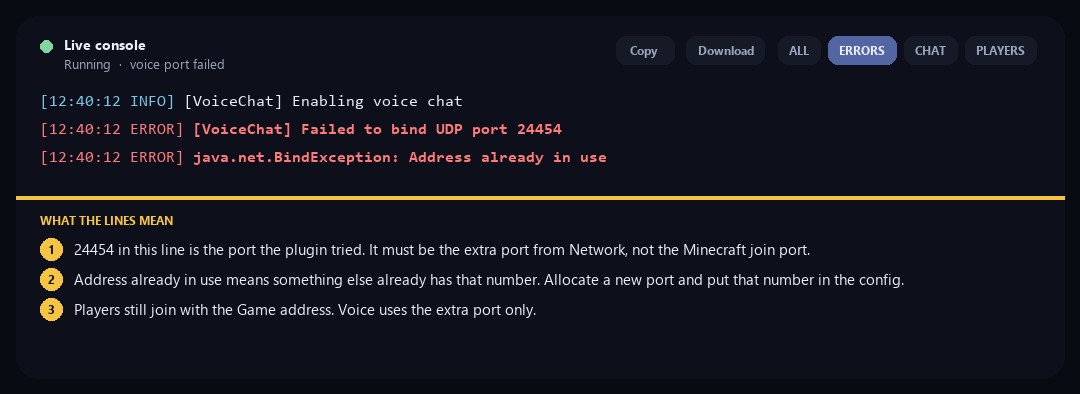
| Failed to bind / address already in use | Two things are using the same port. | Give the plugin its own extra port, or disable the plugin that opened it. |
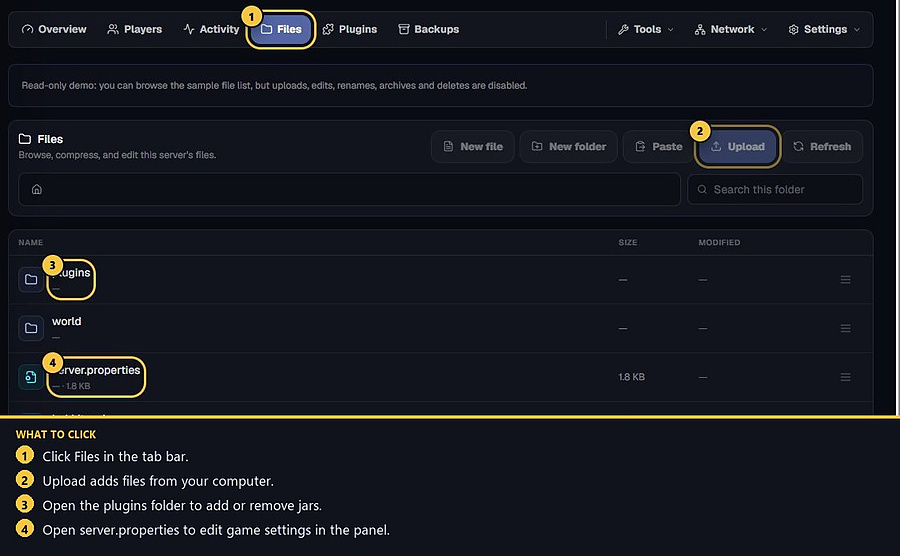
| Error occurred while enabling | That plugin crashed during startup. | Remove that jar from Files → plugins, then start again. |
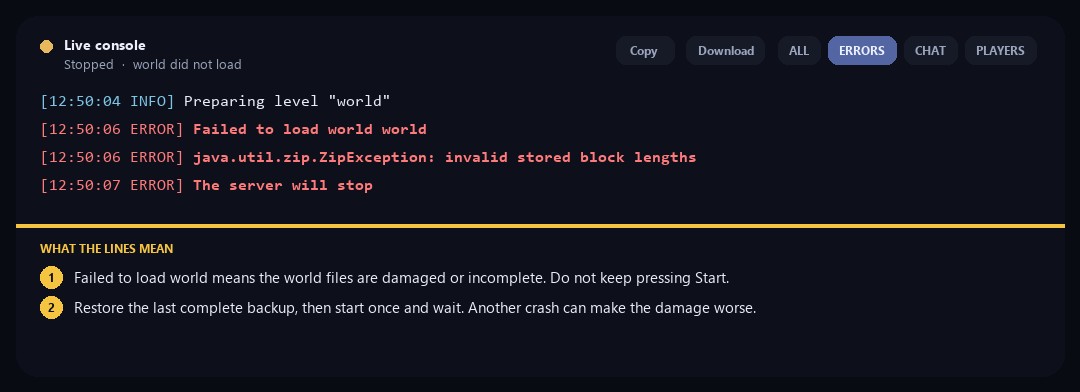
| World failed to load / Could not load world | The world files are damaged or incomplete. | Stop restarting. Restore a backup first. |
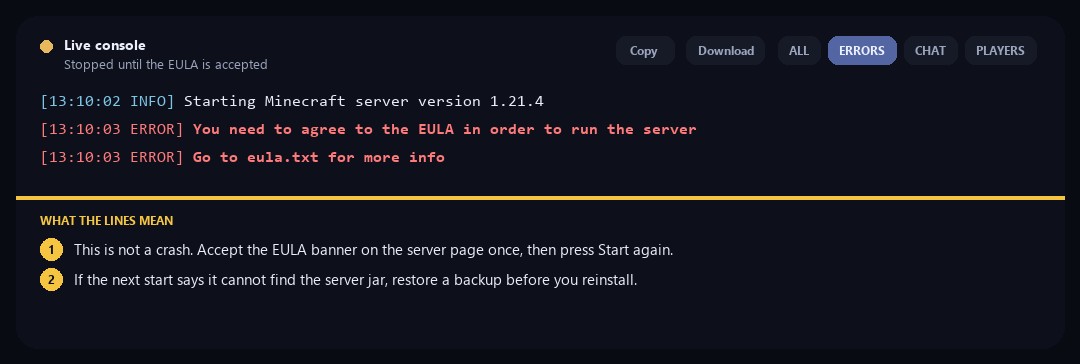
| You need to agree to the EULA | Mojang requires this before the server can run. | Accept the EULA banner on the server page, then press Start. |
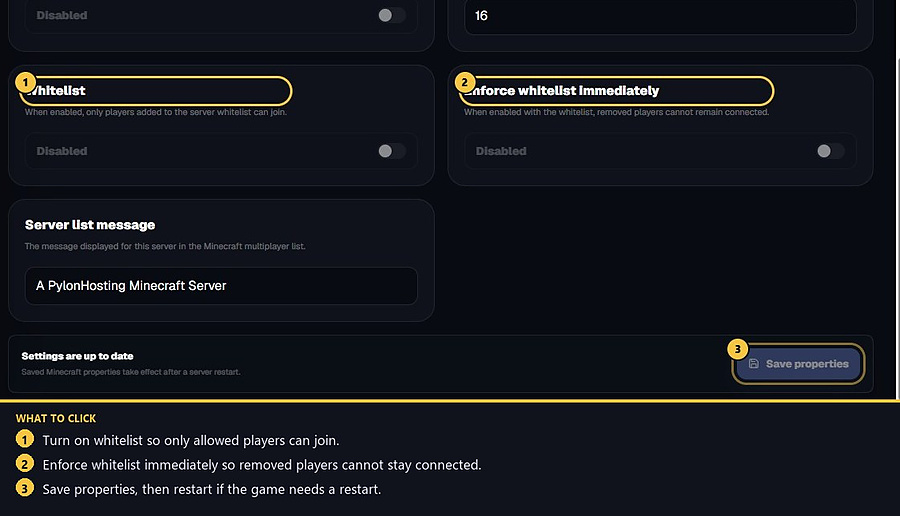
| You are not white-listed | Whitelist is on and that player is not on the list. | whitelist add PlayerName, or turn whitelist off in Server properties. |
| Outdated client / Outdated server | Minecraft version does not match. | Players must use the game version on Settings → General. |
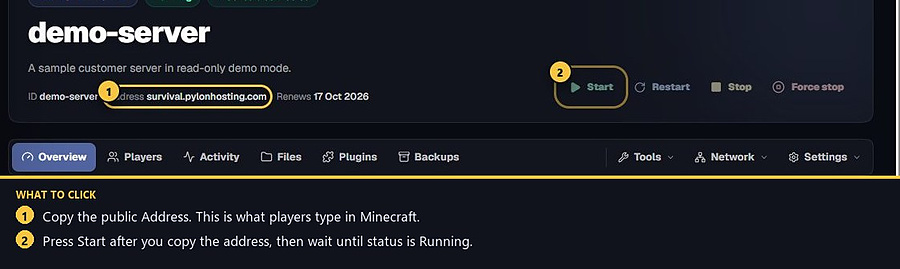
| Connection timed out / Connection refused | The server is offline, still starting, or the address is wrong. | Wait until status is Running, then copy the public Game address. |
| No space left / Failed to create backup | Disk is full or backup slots are used. | Delete old files or backups, or add slots from billing. |
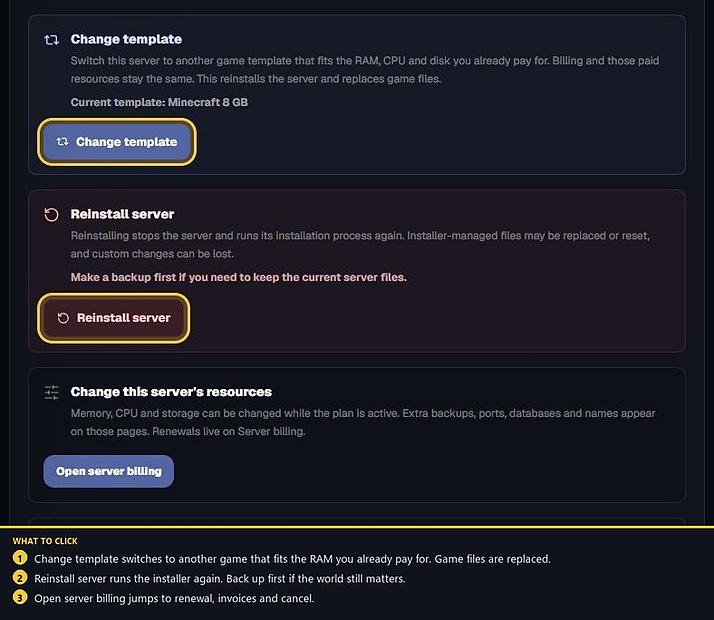
| Unable to access jarfile / missing jar | The server jar is missing or was replaced. | Restore a backup, or reinstall only after you back up the world. |
| start.sh: No such file or directory | The modpack launcher is missing, so bash exits with code 127. | Back up the world, then use Settings → Danger zone → Reinstall server. Start only after that install writes start.sh. |
| Aborting automatic restart | The server stopped again within 60 seconds, so the next automatic restart was paused. | Wait about a minute, then press Start once. Copy the lines from before that pause if it stops again. |
| Tried to load a block entity for air | A chunk still lists a chest, sign or other block entity on a block that is now air. | Minecraft keeps going. This warning is not why the process stopped. |
Aborting automatic restart means the process already stopped, then tried to start again within 60 seconds. Wait about a minute and press Start once. Tried to load a block entity for an air block is a chunk warning. Minecraft continues after it. Neither line is an out-of-memory crash.
Out of memory
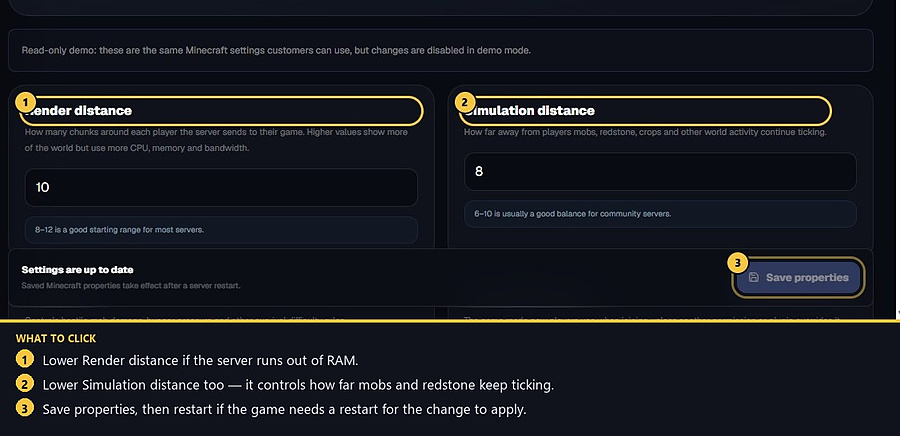
Treat this as a memory problem only when the console prints java.lang.OutOfMemoryError. A server that stops during mod loading without that line did not run out of memory. Copy the last lines and open a ticket. When the line really is java.lang.OutOfMemoryError: Java heap space, open Settings → Server properties and lower Render distance and Simulation distance. 8–12 and 6–10 are a solid starting range. Remove a recently added heavy plugin, then start again. If it still dies with that same line, upgrade RAM.
Wrong Java version
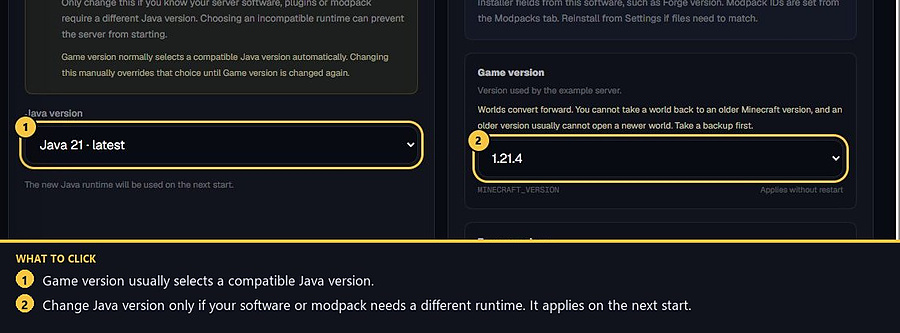
UnsupportedClassVersionError means the runtime does not match Paper, Forge, Fabric or the modpack. Open Settings → General, change Java version, then start. The new Java is used on the next start. Game version normally picks a compatible Java — only override it if the software docs require a specific runtime.
A plugin crashed on enable
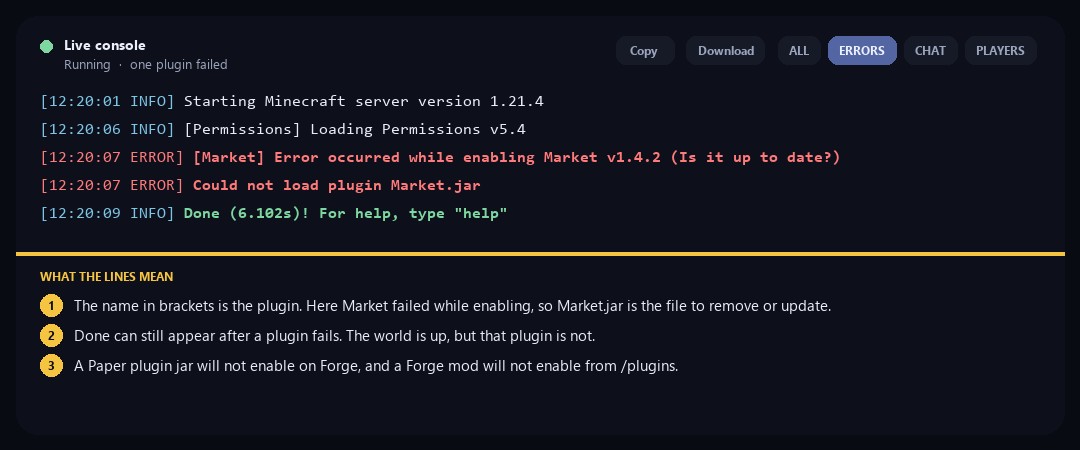
The console names the plugin in Error occurred while enabling. The word in brackets, such as [Market], is the jar to remove or update from Files → plugins. Done can still appear afterwards — the world started, but that plugin did not. A Paper jar will not run on Forge, and the other way around fails too. See Install plugins.
Failed to bind or extra ports
The number in Failed to bind is the port that failed. Voice chat and similar plugins need their own port from Network → Additional ports. The panel assigns the number. Point the plugin at that port. If two plugins share a number, the second one fails with Address already in use. See Join address and extra ports.
World failed to load
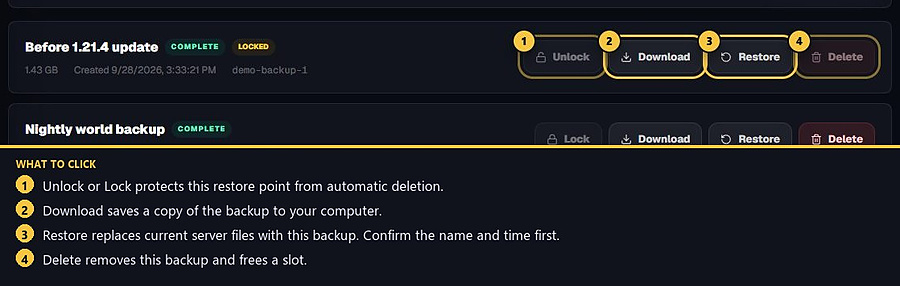
The console says Failed to load world and then stops. Stop pressing Start. Each failed boot can make the world worse. Open Backups and restore the last complete restore point. See Restore a backup. Reinstall from Danger zone only after you have a backup you trust.
Cannot join
Status must read Running. Copy the public Address from Overview — not an internal hostname. The client version must match Settings → General. If whitelist is on, add the player with whitelist add PlayerName or turn whitelist off and restart. Walk through Cannot join your Minecraft server.
EULA and missing jar
You need to agree to the EULA is not a broken world. Accept the EULA banner once, then press Start. If the console says it cannot find the server jar, restore a backup. Reinstall server in Settings → Danger zone replaces installer-managed files — back up the world first if it still matters.
Disk full or backup failed
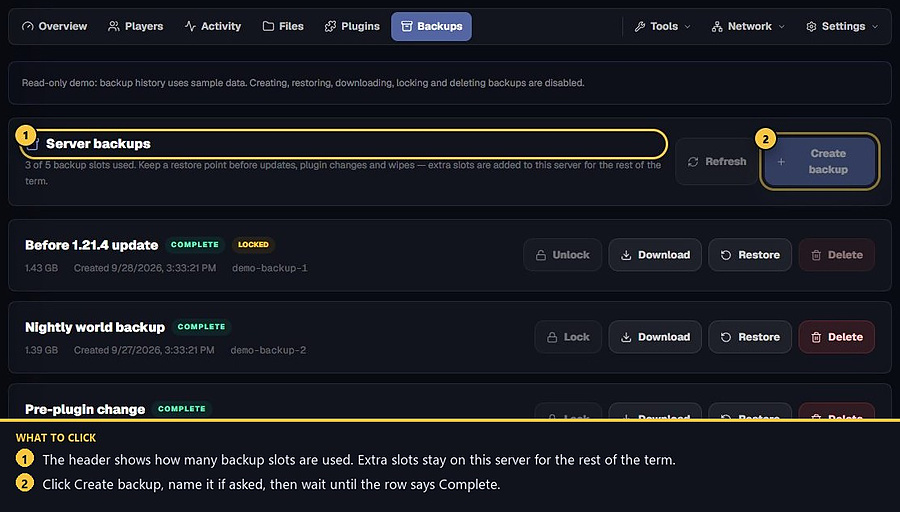
A backup needs a free slot and free disk. Delete unused backups or large files in Files, or add slots from billing. Avoid starting another backup while one is already being created. See Create a backup.
- 1Copy the ERRORS line
Filter the Overview console, then copy or download the log.
- 2Match it in the table
Fix RAM, Java, plugins, ports, whitelist or restore a world backup.
- 3Open a ticket only if it still fails
Include the server short ID and the ERRORS snapshot. Never send passwords.
Match the error, then ask if you still need help
Most console and join issues are already in the guides. Copy the ERRORS line first. Open a ticket only if the steps still fail.