This guide was made by AI
Join address and extra ports
Copy the game address from Overview or Network → Addresses. Extra ports are assigned by the panel.

Players join with the public Game address. Extra ports are for plugins such as voice chat or a web map. The panel assigns the port number.
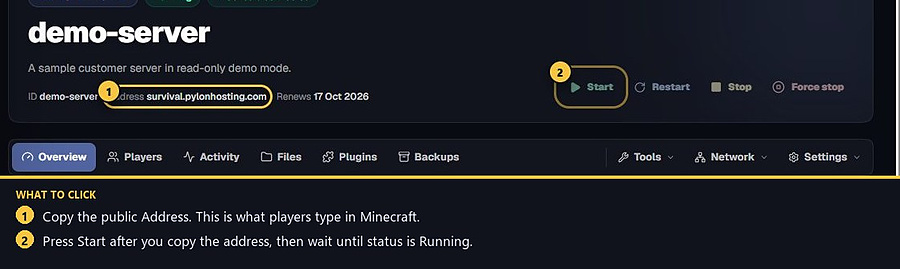
1. Copy the address on Overview
The public address is on the server header. Use that Game address rather than any internal service details. If a port is required, it is included in that address.
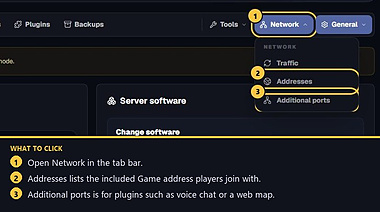
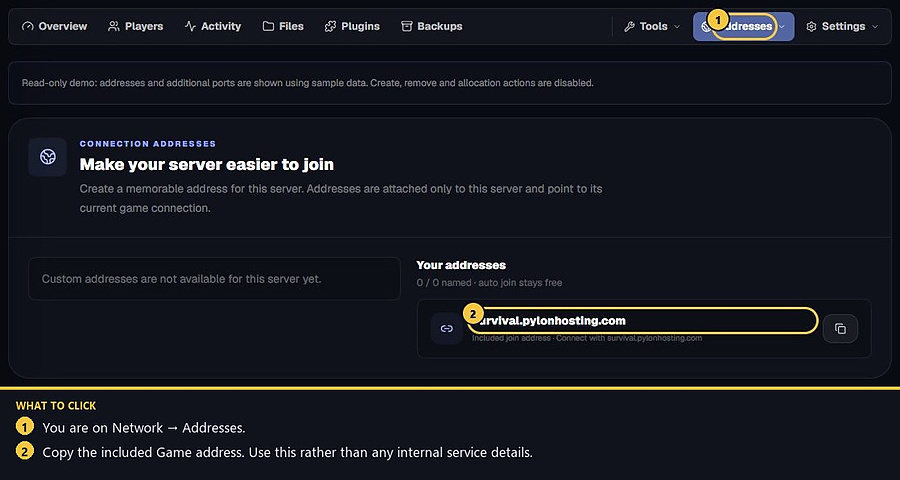
2. Or open Network → Addresses
Click Network, then Addresses. Your included join address is listed there. Custom extra names depend on the plan.
3. Extra ports for plugins
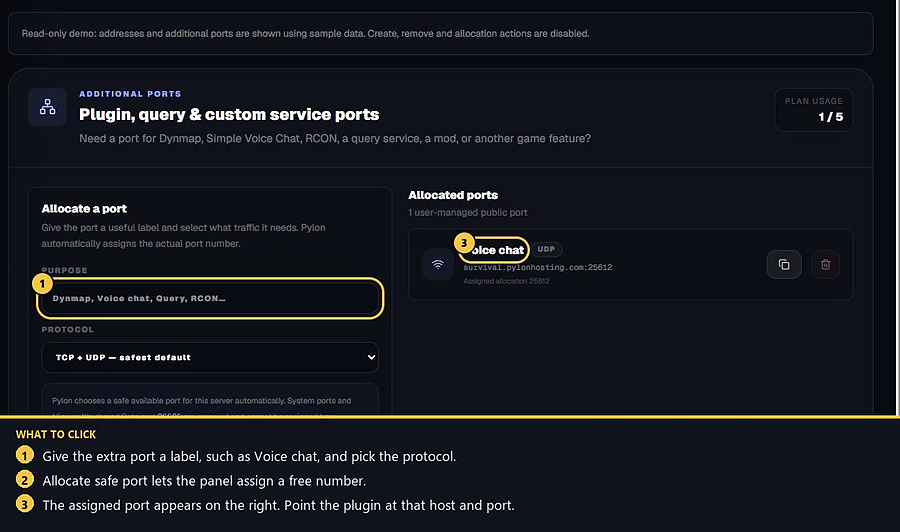
Open Network → Additional ports. Give the port a label, pick the protocol, then press Allocate safe port. The panel assigns a safe available number. Configure the plugin to use the port shown there.
- 1Copy the Game address
Use Overview or Network → Addresses.
- 2Allocate extra ports
The panel chooses the number. Point the plugin at it.
Match the error, then ask if you still need help
Most console and join issues are already in the guides. Copy the ERRORS line first. Open a ticket only if the steps still fail.