This guide was made by AI
Files and SFTP
Edit configs in the panel, then open Settings → Connection for SFTP details. Keep those credentials private.

On this page
Edit configs in the panel, or connect with SFTP for larger uploads. Keep SFTP details private.
1. Open Files
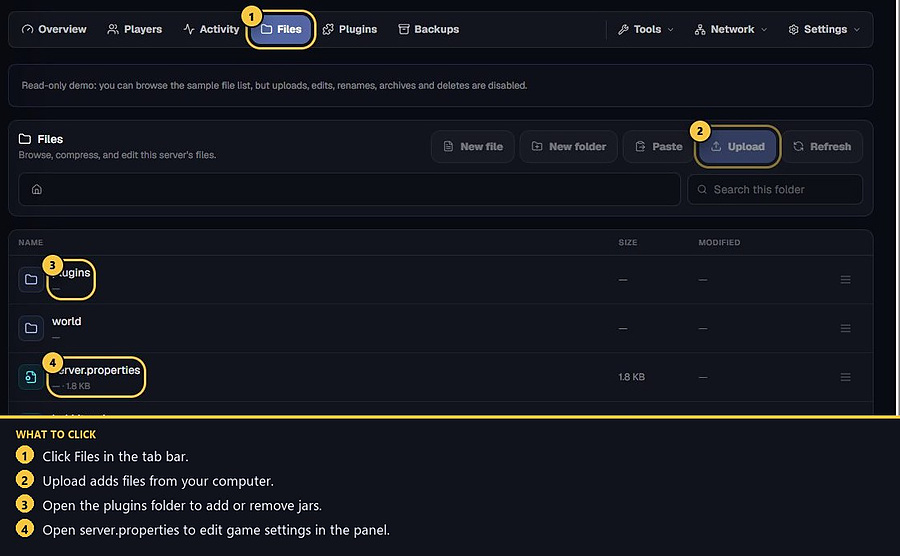
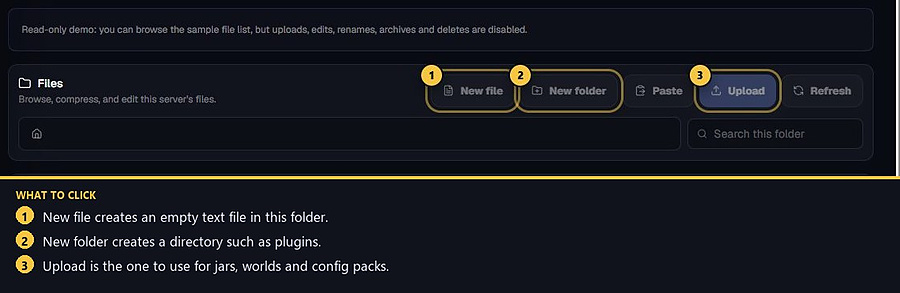
On the server page, click Files. Browse folders, search this folder, and use Upload, New file or New folder.
2. Edit a config and save
Open a supported text file such as server.properties, edit it in the built-in editor, and save. Restart if the game needs a restart for the change to apply.
3. Open Settings → Connection
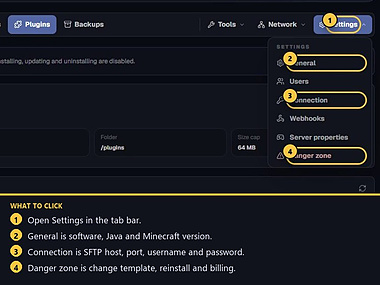
Click Settings, then Connection, for SFTP details.
4. Copy SFTP details or launch an app
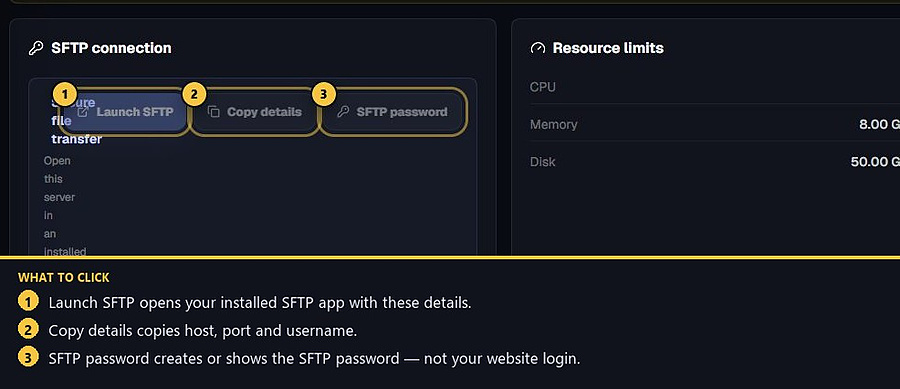
Use Launch SFTP, Copy details or SFTP password. Your website login password is not your SFTP password. Keep host, port, username and password private.
- 1Open Files
Edit or upload from the panel.
- 2Open Connection
Copy SFTP details from Settings → Connection.
Match the error, then ask if you still need help
Most console and join issues are already in the guides. Copy the ERRORS line first. Open a ticket only if the steps still fail.