This guide was made by AI
Restore, download, lock or delete a backup
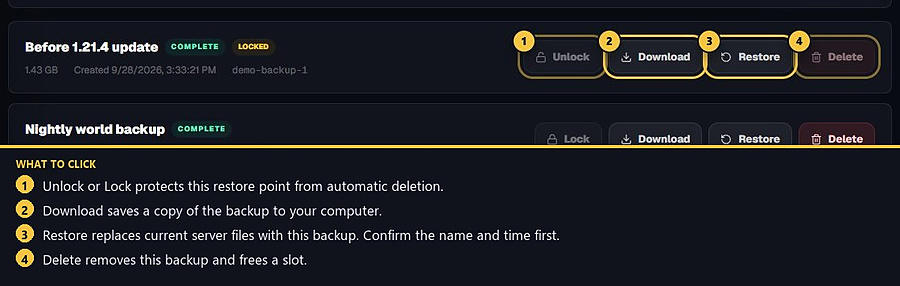
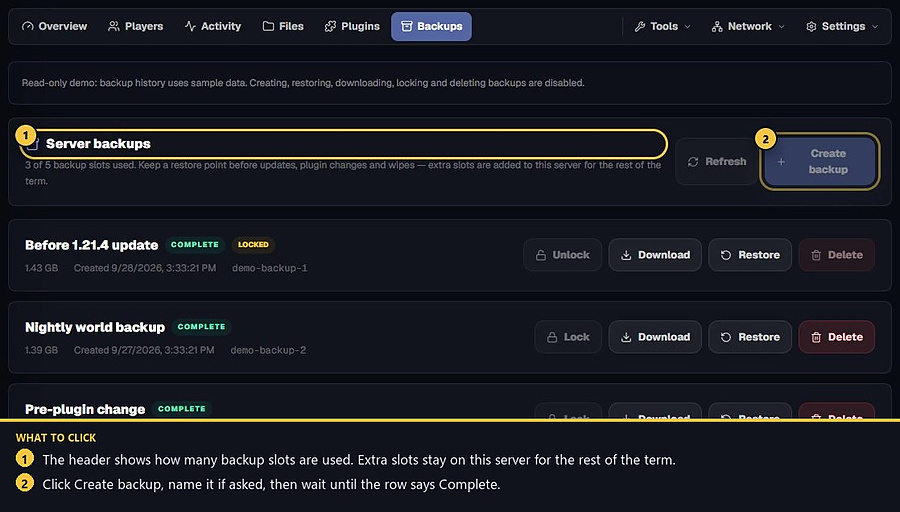
Each backup row has Restore, Download, Lock and Delete for that restore point.

Open Backups and use the buttons on the row you want. Numbered yellow markers show Restore, Download, Lock and Delete.
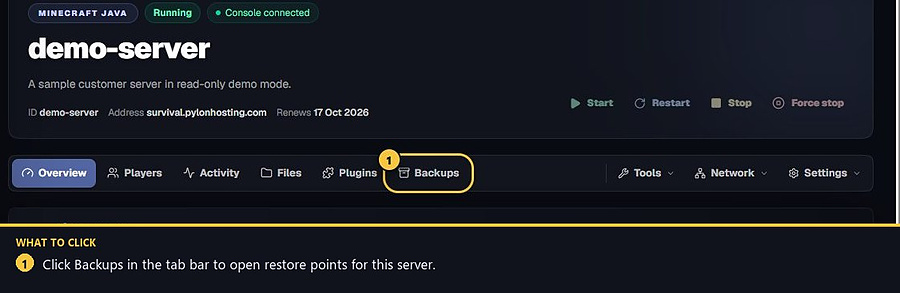
1. Open Backups
Select your server, then click Backups.
2. Choose the backup row
Confirm the name, time and size. A locked backup shows Unlock instead of Lock.
3. Pick the action
Restore replaces current server data with that backup. Confirm you selected the correct one.
Download saves a copy to your computer.
Lock / Unlock protects a backup from automatic deletion.
Delete removes that backup and frees a slot.
- 1Open Backups
Find the restore point you want.
- 2Choose an action
Restore, download, lock or delete that row.
Match the error, then ask if you still need help
Most console and join issues are already in the guides. Copy the ERRORS line first. Open a ticket only if the steps still fail.