This guide was made by AI
Cannot join your Minecraft server
Confirm the server is running, copy the Game address exactly, match the client version, then check whitelist, ports and console errors.

On this page
Most join failures are an offline server, the wrong address, a version mismatch, or whitelist. Work through these checks before you reinstall.
1. Confirm the server is running
Open the server. Status at the top should read Running. If it is offline, press Start and wait until the console says the server is done. If it stops again, copy the ERRORS lines before another restart.
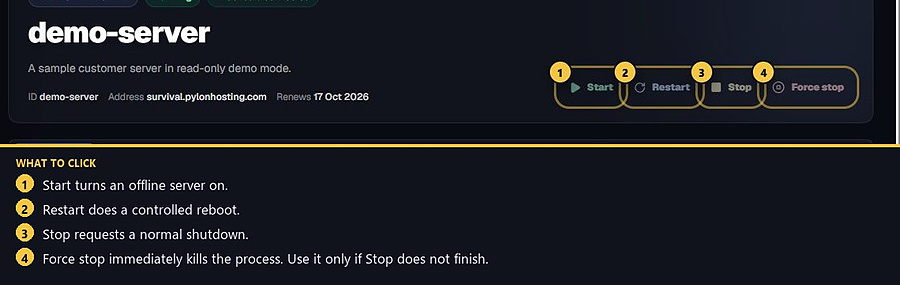
2. Copy the Game address exactly
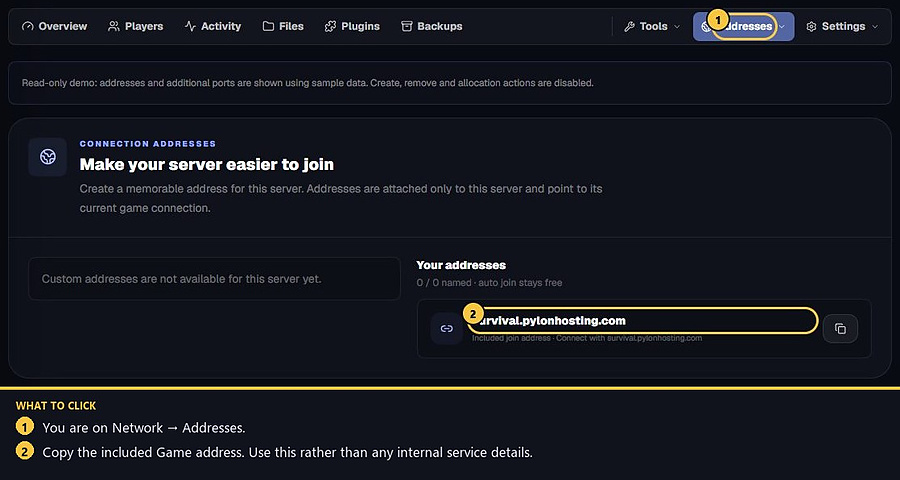
Use the public Address on Overview, or Network → Addresses. Do not type an internal hostname. If a port is required, it is already included in that address. Paste it into Minecraft Multiplayer → Direct Connection. If the address says it needs attention, use the retry option and check Server messages.
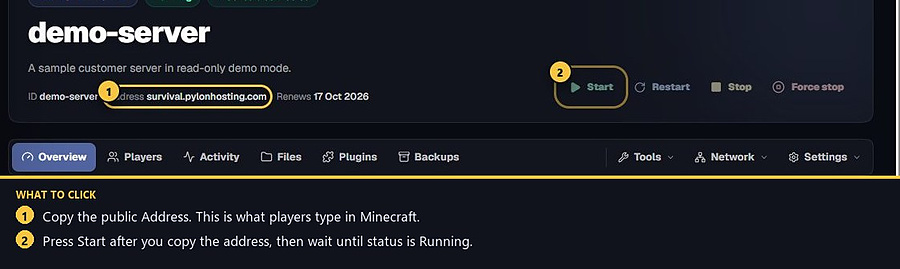
3. Match the client version
The Minecraft client must match the game version on Settings → General. A newer client cannot join an older server, and the other way around fails too. Bedrock Edition cannot join a Java server.
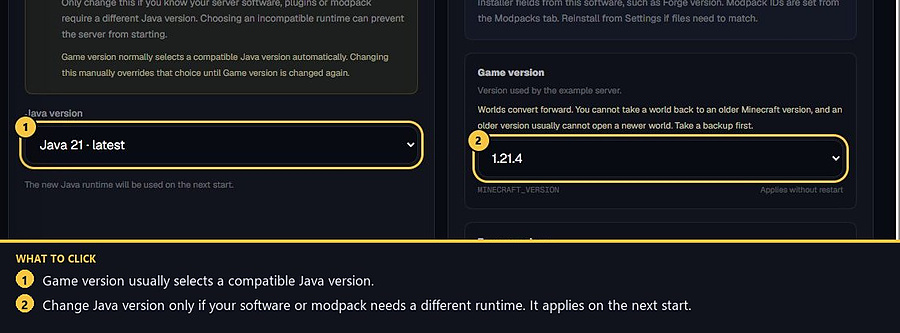
4. Check whitelist, bind errors and extra ports
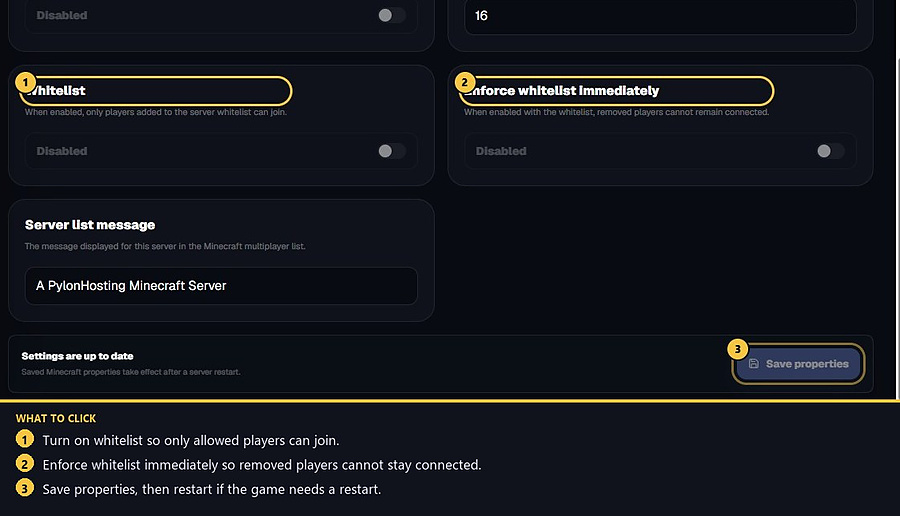
If whitelist is on, add the player with whitelist add PlayerName from the console, or turn whitelist off from Settings → Server properties and restart. The console should answer Added PlayerName to the whitelist.
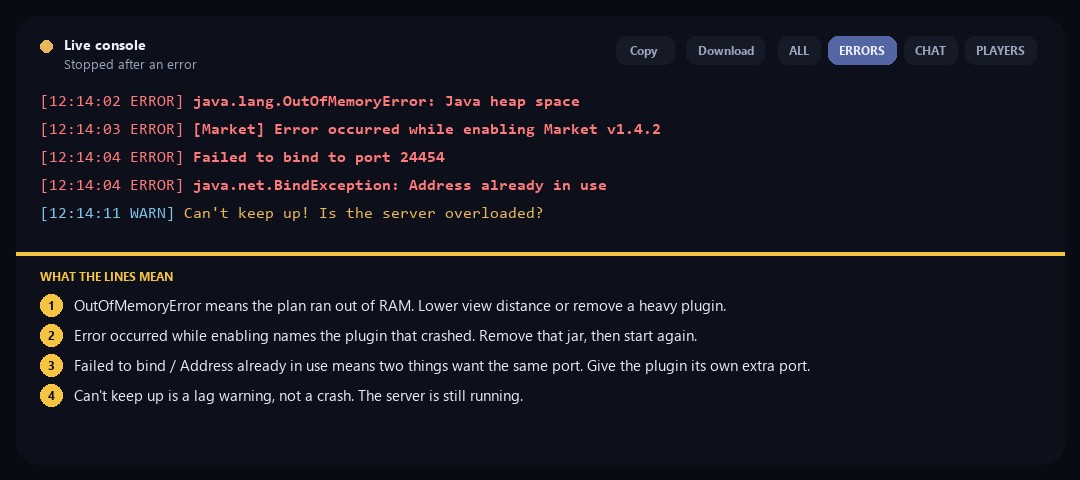
Console Failed to bind or Address already in use means another process or plugin is using the same port. The number in that line is the port that failed. Check Network settings and disable a recently added plugin that opens a port, then start again.
Voice chat and web maps need an extra port from Network → Additional ports. The panel assigns the number. Point the plugin at that port, not a number you invented.
5. If you still cannot join
Match the console line in common console errors first. If it still fails, open a support ticket with the server short ID from the header, the exact Game address you copied, the Minecraft client version, and the console ERRORS snapshot. Never include passwords, SFTP details or card numbers.
- 1Start the server
Wait until status is Running.
- 2Copy the Game address
Use Overview or Network → Addresses, not an internal hostname.
- 3Match version and whitelist
Same Minecraft version. Add the player if whitelist is on.
Match the error, then ask if you still need help
Most console and join issues are already in the guides. Copy the ERRORS line first. Open a ticket only if the steps still fail.