This guide was made by AI
Automatic restarts, commands and backup schedules
Tools → Schedules can run a command, a power action or a backup on a timer. Backup tasks are limited to one run every 30 minutes.

On this page
Use schedules for a nightly restart, a save command, or a repeating backup. Numbered yellow markers show what to click.
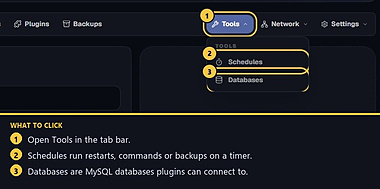
1. Open Tools → Schedules
On the server page, click Tools, then Schedules. Helper cannot open this page. Manager and owner can.
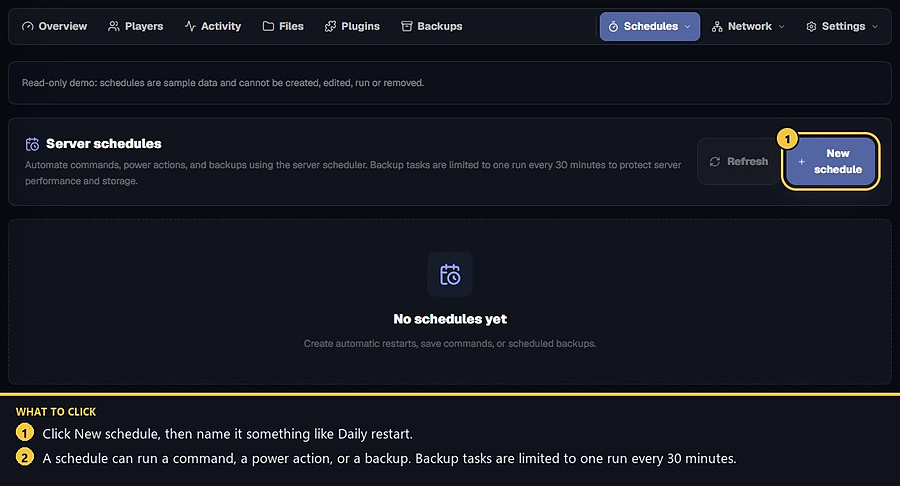
2. Press New schedule
Click New schedule. Name it something you will recognise, such as Daily restart.
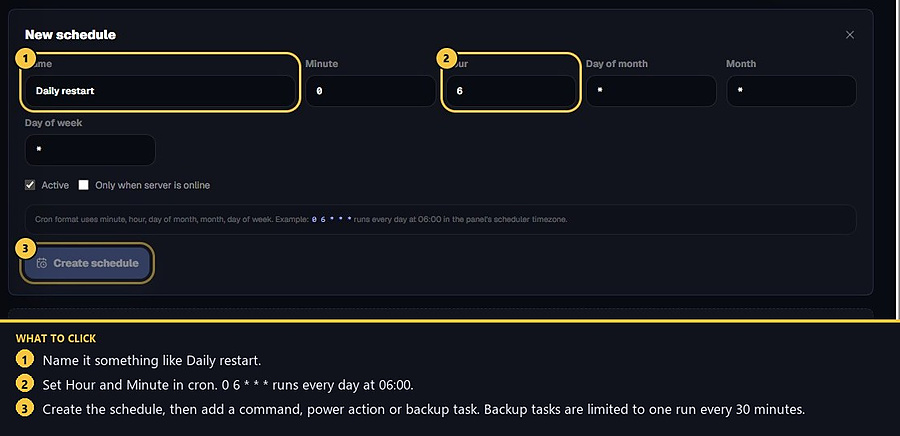
3. Set the time
Cron fields are minute, hour, day of month, month and day of week. Example: 0 6 * * * runs every day at 06:00 in the panel scheduler timezone. Tick Active. Tick Only when server is online if the task should skip an offline server. Tick Run on every profile if the schedule should stay when you switch profiles. Leave that off and the schedule belongs to the profile that is live now. Press Create schedule.
4. Add a task
Open the new schedule and add a task.
A command task sends console text such as save-all or a plugin command.
A power task can start, stop or restart at that time. Use restart for a daily reboot rather than force stop.
A backup task creates a restore point. Backup tasks are limited to one run every 30 minutes to protect performance and storage. Make sure you still have a free backup slot.
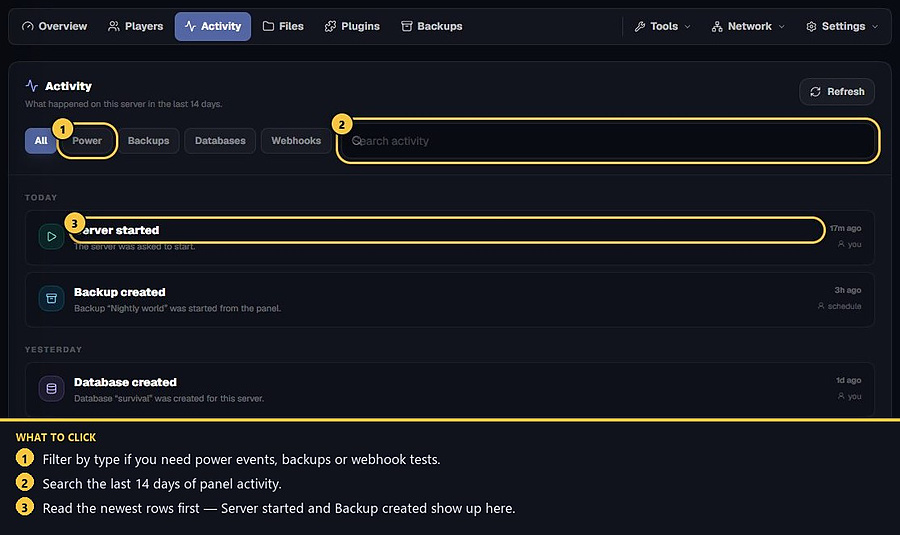
5. Check that it ran
After the first run, open Activity and filter power or backup events. If a backup task is skipped, you are often inside the 30-minute window, out of slots, or the server was offline with “only when online” ticked.
- 1Open Schedules
Tools → Schedules.
- 2Create and time it
Name it, set cron, then create.
- 3Add a task
Command, power or backup. Backups at most every 30 minutes.
Match the error, then ask if you still need help
Most console and join issues are already in the guides. Copy the ERRORS line first. Open a ticket only if the steps still fail.