This guide was made by AI
Open a support ticket
Open Support tickets from the dashboard. Include the server short ID and the exact error. Never send passwords, cards or reset links.

On this page
Tickets stay on your signed-in account and keep a written trail. Staff will never ask for your password, payment card details or authentication codes. Before you open a ticket, look through the guides — most join, crash and billing questions are already answered there.
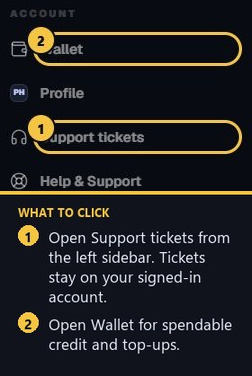
1. Open Support tickets
In the left sidebar, click Support tickets. You must be signed in. Tickets cannot be opened from the public demo.
2. Fill in the form
The form first asks Have you looked through the guides? Open the suggested links for your category — for a server issue that is common console errors, cannot join, and server stays offline. Tick that you still need help, then fill in the rest.
Use a short Subject. Pick a category: Server, Billing, Account or Other. For a server issue, choose the related server so staff can open the matching service. In Details, say what happened, when, and paste the exact console error. Confirm you are opening the ticket on your account, then submit.
3. Include the right evidence
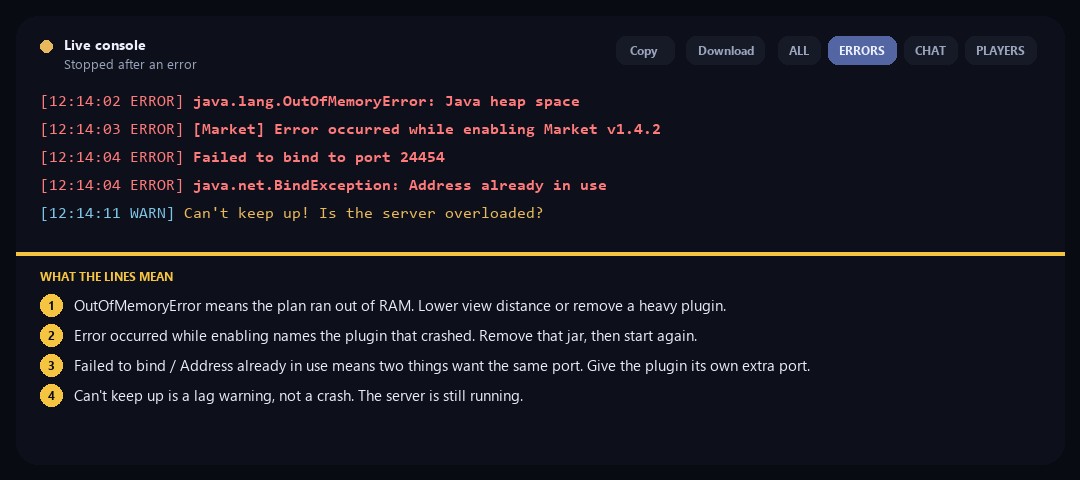
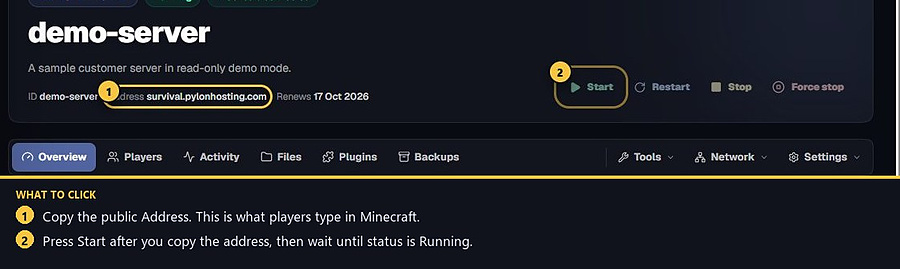
Copy the server short ID from the server header. On Overview, turn on ERRORS, then copy or download the console. Paste the red lines, not the whole chat. For a join issue, include the Game address and the Minecraft client version. For billing, include the invoice or renewal date — not a card number.
4. Never send secrets
Never send your password, password-reset link, payment card details, authentication codes, SFTP password or webhook URL. Support can investigate normal issues without those secrets. If a credential may already be in the ticket, rotate it on the server (SFTP password, database password, webhook secret) after you send a redacted follow-up.
5. After staff reply
Replies stay on that ticket. If support offers a goodwill credit, choose wallet or next-bill credit on the ticket when they let you choose. Closed tickets remain readable from Support tickets. New tickets are sometimes temporarily closed; you can still read existing ones.
- 1Check the guides first
Open the suggested guides, then tick that you still need help.
- 2Add the server ID and errors
Paste console ERRORS. Never send passwords or cards.
- 3Wait on that ticket
Choose wallet or next-bill credit if support offers one.
Match the error, then ask if you still need help
Most console and join issues are already in the guides. Copy the ERRORS line first. Open a ticket only if the steps still fail.